 Basic functions
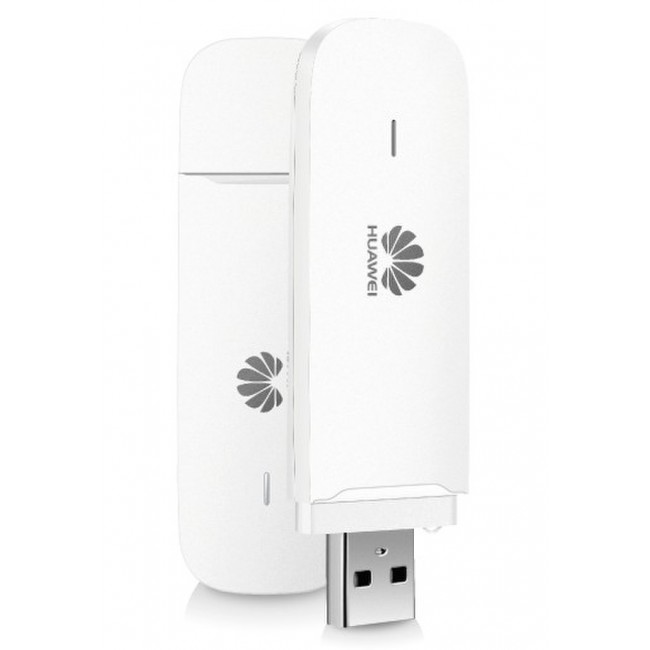
The Huawei E3531 offers dual-band UMTS (900/2100 MHz) and quad-band GSM (850/900/1800/1900 MHz). The HUAWEI E3531 is SIM card unlocked and free for any operators. So the E3531 modem could be used in most countries in Europe, but only in the U.S. and parts of Asia, the HUAWEI E3531 can’t be used. With dimensions of 84x27x10, 5 mm, and weight of only 30 grams, the E3531 stick is very compact and slim, which makes it eas to take in hand or pocket when travelling. Huawei E3531 has a connector for an external antenna, it helps user to get better signal strength in rural area where lower signal.
Connects In 15 seconds
The Huawei E3531 HSPA+ Surfstick software is supplied with the Huawei HiLink, which allows operation without additional software. Only drivers will be installed at the first plugging to the computer, all operating systems are supported on Windows XP/SP3. The complete configuration is done via a web interface in the browser.
HiLink Another advantage of the software: after plugging to PC for about 15 seconds, Huawei E3531 would automatically connect to the internet and PC can start surf freely. The E3531 can work with almost all sim cards completely, what’s more, the Huawei E3531 can auto setup the APN and automatically configures itself accordingly. Only the SIM PIN must be entered.
Available from the end of 2013
Huawei E3531 HSPA+ delivers the surf stick from the 4th Quarter of 2013 to the market. Here, the modem will be available in black and white colors and costs very few, unsubsidized and free for all SIM cards, of course. As an alternative, the Huawei E3331 (smallest surf stick in the world) has similar features and is already available.
Basic functions
The Huawei E3531 offers dual-band UMTS (900/2100 MHz) and quad-band GSM (850/900/1800/1900 MHz). The HUAWEI E3531 is SIM card unlocked and free for any operators. So the E3531 modem could be used in most countries in Europe, but only in the U.S. and parts of Asia, the HUAWEI E3531 can’t be used. With dimensions of 84x27x10, 5 mm, and weight of only 30 grams, the E3531 stick is very compact and slim, which makes it eas to take in hand or pocket when travelling. Huawei E3531 has a connector for an external antenna, it helps user to get better signal strength in rural area where lower signal.
Connects In 15 seconds
The Huawei E3531 HSPA+ Surfstick software is supplied with the Huawei HiLink, which allows operation without additional software. Only drivers will be installed at the first plugging to the computer, all operating systems are supported on Windows XP/SP3. The complete configuration is done via a web interface in the browser.
HiLink Another advantage of the software: after plugging to PC for about 15 seconds, Huawei E3531 would automatically connect to the internet and PC can start surf freely. The E3531 can work with almost all sim cards completely, what’s more, the Huawei E3531 can auto setup the APN and automatically configures itself accordingly. Only the SIM PIN must be entered.
Available from the end of 2013
Huawei E3531 HSPA+ delivers the surf stick from the 4th Quarter of 2013 to the market. Here, the modem will be available in black and white colors and costs very few, unsubsidized and free for all SIM cards, of course. As an alternative, the Huawei E3331 (smallest surf stick in the world) has similar features and is already available.
Tuesday, December 31, 2013
Huawei E3531 HSPA+ 21.6Mbps USB Surfstick
Huawei E3531 comes available in 4th Quarter of 2013, as a new surf stick on the market. Huawei E3531 is mainly for Germany operators. Depending on the rate and network environment, the download speeds could reach up to 21.6 Mbit/s and upload speeds achievable could reach to 5.76 Mbps. The features are similar to HUAWEI E3131, which is already available in the market since 2012.
 Basic functions
The Huawei E3531 offers dual-band UMTS (900/2100 MHz) and quad-band GSM (850/900/1800/1900 MHz). The HUAWEI E3531 is SIM card unlocked and free for any operators. So the E3531 modem could be used in most countries in Europe, but only in the U.S. and parts of Asia, the HUAWEI E3531 can’t be used. With dimensions of 84x27x10, 5 mm, and weight of only 30 grams, the E3531 stick is very compact and slim, which makes it eas to take in hand or pocket when travelling. Huawei E3531 has a connector for an external antenna, it helps user to get better signal strength in rural area where lower signal.
Connects In 15 seconds
The Huawei E3531 HSPA+ Surfstick software is supplied with the Huawei HiLink, which allows operation without additional software. Only drivers will be installed at the first plugging to the computer, all operating systems are supported on Windows XP/SP3. The complete configuration is done via a web interface in the browser.
HiLink Another advantage of the software: after plugging to PC for about 15 seconds, Huawei E3531 would automatically connect to the internet and PC can start surf freely. The E3531 can work with almost all sim cards completely, what’s more, the Huawei E3531 can auto setup the APN and automatically configures itself accordingly. Only the SIM PIN must be entered.
Available from the end of 2013
Huawei E3531 HSPA+ delivers the surf stick from the 4th Quarter of 2013 to the market. Here, the modem will be available in black and white colors and costs very few, unsubsidized and free for all SIM cards, of course. As an alternative, the Huawei E3331 (smallest surf stick in the world) has similar features and is already available.
Basic functions
The Huawei E3531 offers dual-band UMTS (900/2100 MHz) and quad-band GSM (850/900/1800/1900 MHz). The HUAWEI E3531 is SIM card unlocked and free for any operators. So the E3531 modem could be used in most countries in Europe, but only in the U.S. and parts of Asia, the HUAWEI E3531 can’t be used. With dimensions of 84x27x10, 5 mm, and weight of only 30 grams, the E3531 stick is very compact and slim, which makes it eas to take in hand or pocket when travelling. Huawei E3531 has a connector for an external antenna, it helps user to get better signal strength in rural area where lower signal.
Connects In 15 seconds
The Huawei E3531 HSPA+ Surfstick software is supplied with the Huawei HiLink, which allows operation without additional software. Only drivers will be installed at the first plugging to the computer, all operating systems are supported on Windows XP/SP3. The complete configuration is done via a web interface in the browser.
HiLink Another advantage of the software: after plugging to PC for about 15 seconds, Huawei E3531 would automatically connect to the internet and PC can start surf freely. The E3531 can work with almost all sim cards completely, what’s more, the Huawei E3531 can auto setup the APN and automatically configures itself accordingly. Only the SIM PIN must be entered.
Available from the end of 2013
Huawei E3531 HSPA+ delivers the surf stick from the 4th Quarter of 2013 to the market. Here, the modem will be available in black and white colors and costs very few, unsubsidized and free for all SIM cards, of course. As an alternative, the Huawei E3331 (smallest surf stick in the world) has similar features and is already available.
Basic functions
The Huawei E3531 offers dual-band UMTS (900/2100 MHz) and quad-band GSM (850/900/1800/1900 MHz). The HUAWEI E3531 is SIM card unlocked and free for any operators. So the E3531 modem could be used in most countries in Europe, but only in the U.S. and parts of Asia, the HUAWEI E3531 can’t be used. With dimensions of 84x27x10, 5 mm, and weight of only 30 grams, the E3531 stick is very compact and slim, which makes it eas to take in hand or pocket when travelling. Huawei E3531 has a connector for an external antenna, it helps user to get better signal strength in rural area where lower signal.
Connects In 15 seconds
The Huawei E3531 HSPA+ Surfstick software is supplied with the Huawei HiLink, which allows operation without additional software. Only drivers will be installed at the first plugging to the computer, all operating systems are supported on Windows XP/SP3. The complete configuration is done via a web interface in the browser.
HiLink Another advantage of the software: after plugging to PC for about 15 seconds, Huawei E3531 would automatically connect to the internet and PC can start surf freely. The E3531 can work with almost all sim cards completely, what’s more, the Huawei E3531 can auto setup the APN and automatically configures itself accordingly. Only the SIM PIN must be entered.
Available from the end of 2013
Huawei E3531 HSPA+ delivers the surf stick from the 4th Quarter of 2013 to the market. Here, the modem will be available in black and white colors and costs very few, unsubsidized and free for all SIM cards, of course. As an alternative, the Huawei E3331 (smallest surf stick in the world) has similar features and is already available.

Monday, December 30, 2013
Huawei B593 B593s-22 4G LTE Router Review
If LTE signal is already available in your area and you want to maximize the fast speed for 150Mbps, the Huawei B593 4G Router might be the best device to deploy this.
We had the LTE CPE B593 for about a few months and have tested it with Vodafone and Telekom 4G LTE networks (more often with Vodafone), not matter it has weak or no LTE signal in the house, condo and the office). The model number is B593s-22. Just like HUAWEI E5172, it’s a 4G LTE Category 4 WiFi Router.
 The device B593 is with HUAWEI logo and no operator’s logo can be found. So it is unlocked, we’re able to use it with local carriers. We’ve also tried the 3G/HSPA+ WiFi router (Huawei B683) before and have been well satisfied with it. Now the 4G LTE networks provide much faster connection speed and surfing experience, it’s time to use a 4G device to enjoy the great speed.
 We used the Vodafone Prepaid LTE and Telekom prepaid SIM card, they both worked fine on Huawei B593 4G LTE Router. The SIM card slot is at the bode side of Huawei B593, below the SIM card slot, it’s the power button.
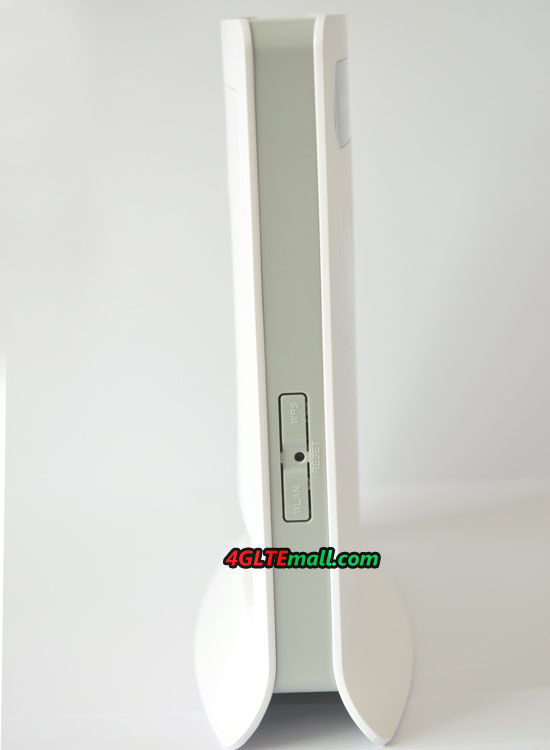
 On the other side of the router, there are two buttons for WPS and Reset. WPS is to protect the WiFi security and Reset is help use to reset the settings to factory default.
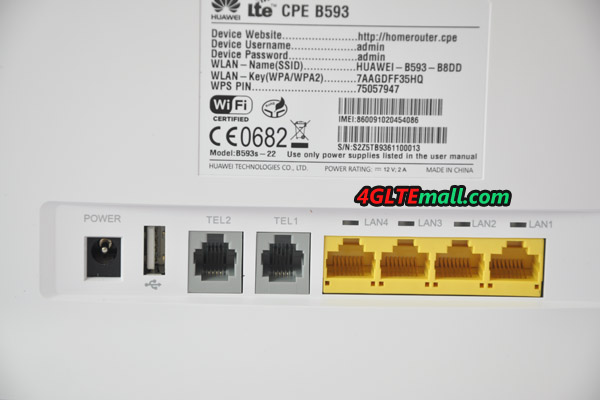
 Aside from the 4 LAN ports at the back, there’s also a USB 2.0 port so you can attached a HDD or flash drive for access to network storage. And there are two analog telephone ports beside the LAN ports. User can connect two telephones to this device.
 For better signal strength, there are two plugs for external antennas to boost the signal in HUAWEI B593. If there’s no LTE in the area, LTE CPE B593 will switch to HSPA+/HSPA/3G automatically and work on the best networks available.
We went to test out the connection via Speedtest.net and got pretty good results. The device is available on 4gltemall.com but if you also need the external 4G antenna, it is sold separately for on 4gltemall.com with good price. To buy them together, you will get some discount.
For better signal strength, there are two plugs for external antennas to boost the signal in HUAWEI B593. If there’s no LTE in the area, LTE CPE B593 will switch to HSPA+/HSPA/3G automatically and work on the best networks available.
We went to test out the connection via Speedtest.net and got pretty good results. The device is available on 4gltemall.com but if you also need the external 4G antenna, it is sold separately for on 4gltemall.com with good price. To buy them together, you will get some discount.
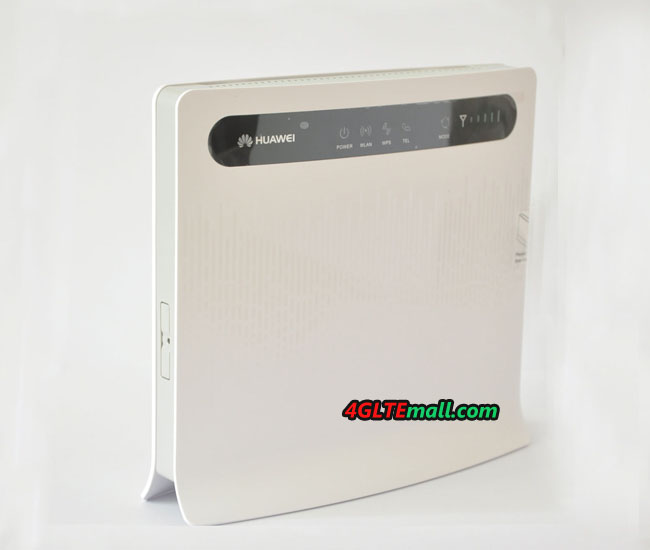 The device B593 is with HUAWEI logo and no operator’s logo can be found. So it is unlocked, we’re able to use it with local carriers. We’ve also tried the 3G/HSPA+ WiFi router (Huawei B683) before and have been well satisfied with it. Now the 4G LTE networks provide much faster connection speed and surfing experience, it’s time to use a 4G device to enjoy the great speed.
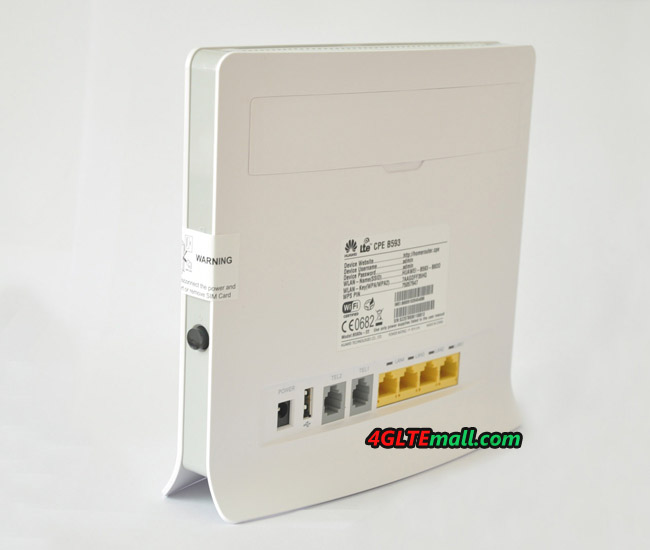 We used the Vodafone Prepaid LTE and Telekom prepaid SIM card, they both worked fine on Huawei B593 4G LTE Router. The SIM card slot is at the bode side of Huawei B593, below the SIM card slot, it’s the power button.
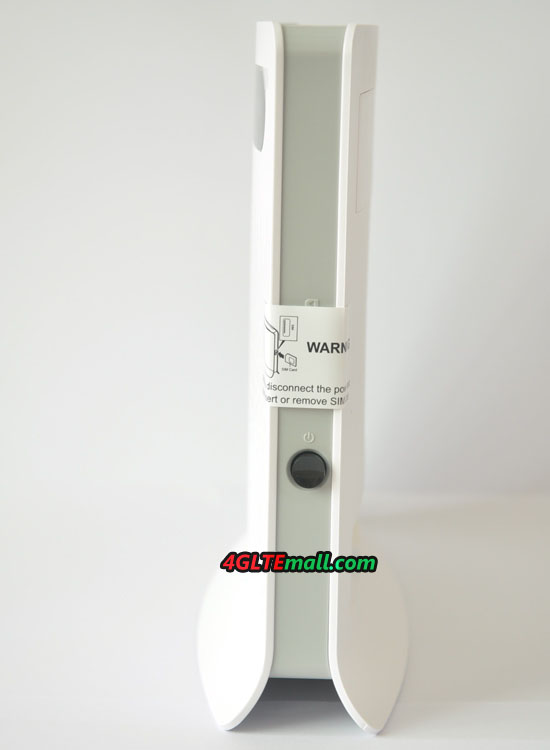 On the other side of the router, there are two buttons for WPS and Reset. WPS is to protect the WiFi security and Reset is help use to reset the settings to factory default.
 Aside from the 4 LAN ports at the back, there’s also a USB 2.0 port so you can attached a HDD or flash drive for access to network storage. And there are two analog telephone ports beside the LAN ports. User can connect two telephones to this device.
 For better signal strength, there are two plugs for external antennas to boost the signal in HUAWEI B593. If there’s no LTE in the area, LTE CPE B593 will switch to HSPA+/HSPA/3G automatically and work on the best networks available.
We went to test out the connection via Speedtest.net and got pretty good results. The device is available on 4gltemall.com but if you also need the external 4G antenna, it is sold separately for on 4gltemall.com with good price. To buy them together, you will get some discount.
For better signal strength, there are two plugs for external antennas to boost the signal in HUAWEI B593. If there’s no LTE in the area, LTE CPE B593 will switch to HSPA+/HSPA/3G automatically and work on the best networks available.
We went to test out the connection via Speedtest.net and got pretty good results. The device is available on 4gltemall.com but if you also need the external 4G antenna, it is sold separately for on 4gltemall.com with good price. To buy them together, you will get some discount.
Saturday, December 28, 2013
4G Surfstick/Internet Stick/Mobile Hotspot/Router for Belgium
You may want to enjoy the 4G LTE networks in Belgium, but if you are in trouble to choose the wireless terminals to access the 4G network, below the guide may help you:
First, you need to know the 4G LTE operators and their LTE frequency bands in Belgium, per our information, the main 4G operators and LTE Frequency bands in Belgium is as below:
- b-lite, TDD Band 42 (3500MHz)
- BUCD BVBA, TDD Band 38 (2600MHz)
- Base, FDD Band 3/7 (1800/2600MHz)
- Mobistar, FDD Band 3/7 (1800/2600MHz)
- Proximus, FDD Band 3/7 (1800/2600MHz)
- Huawei E392u-21
- Huawei E392u-92
- Huawei E398s-81
- ZTE MF880
- ZTE MF821S2
- ZTE MF820S2
- ZTE MF825
- Quanta 1K3M
- ZTE MF820T
- Huawei E5776s-22
- Huawei E5776s-860
- ZTE MF91T
- ZTE MF91S
- China Mobile CM510
- HUAWEI B593s-22
- HUAWEI B593s-82
- Huawei B880
- ZTE MF28G
- ZTE MF29S2
- ZTE MF29T
- Samsung GT-B3730
- Huawei E392 (E392u-12, E392u-6, E392u-21, E392u-22)
- Huawei K5150 (Vodafone, unlocked )
- Huawei K5005 (Vodafone, Unlocked )
- HUAWEI E398 (E398u-1, E398u-15, E398u-18, E398u-11, E398s-81)
- Huawei E3276 (E3276S-150, E3276S-151, E3276s-152, E3276S-861, E3276S-210, E3276S-601)
- Huawei K5007 (Vodafone )
- ZTE K5008Z(Vodafone, Unlocked)
- Alcatel One Touch L800
- Alcatel One Touch W800
- ZTE MF880
- ZTE MF825
- ZTE MF820
- ZTE MF821
- ZTE MF821D
- ZTE K5006Z (Vodafone, Unlocked )
- Sierra Aircard 320u
- HUAWEI B593u-12
- HUAWEI B593s-22
- HUAWEI B890-75
- Vodafone B2000
- ZTE MF25D
- ZTE MF28B
- ZTE MF28G
- ZTE MF29S2
- ZTE MF28D
- Netgear MVBR1517
- ZyXEL LTE6100
- HUAWEI E5776s-32/E5776S-22/E5776S-860
- Huawei E589u-12
- Huawei R210 (Vodafone, Unlocked )
- ZTE MF91
- ZTE MF91D
- ZTE MF910
- ZTE MF90
- ZTE MF97S
- ZTE MF93E
- ZTE R212 (Vodafone, Unlocked)
- Alcatel One Touch Y800
- Sierra Wireless 760S
Thursday, December 26, 2013
Huawei E5220 HSPA+ WLAN Router Test
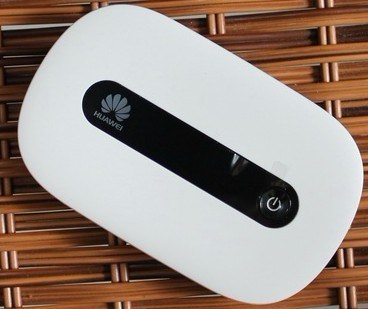
Huawei E5220 Mobile Wi-Fi hotspot is a small mobile pocket router that can forward the UMTS internet connection via WiFi for up to 10 devices simultaneously. In comparison with other portable Wi-Fi hotspots, we will soon find out that the Huawei E5220 without contract belongs to the best devices of its kind. With the low weight of only 66 grams and dimensions of 90 mm x 56 mm x 14.4 mm, Huawei E5220 is a unique mobile hotspot. And the price of Huawei E5220 is good, so how does the price affect the performance? Let’s have a look at the result of HUAWEI E5220 test.
HSPA+ up to 21.6 Mbit/s
Following the Huawei E5 series, Huawei E5220 also works both in GSM network and the UMTS network, LTE is not supported. In the UMTS network, the download speed of up to 21.6 Mbit/s via HSPA+ is available, of course, it depends on the configuration and utilization of the network. In the test, we use the HUAWEI E5220 under the Vodafone network, a maximum speed of 14 Mbit/s downstream and 3.3 Mbit/s upstream; while with the network of Deutsche Telekom, the speeds 4.2 Mbit/s for downstream and 4.1 Mbit/s for Upstream were possible. The ping times were at 35 - 80 milliseconds over UMTS, depending on network and usage. The usable frequency bands are the 900 and 2100 megahertz with UMTS/HSPA+, and 850/900/1800/1900 MHz for GSM/EDGE.
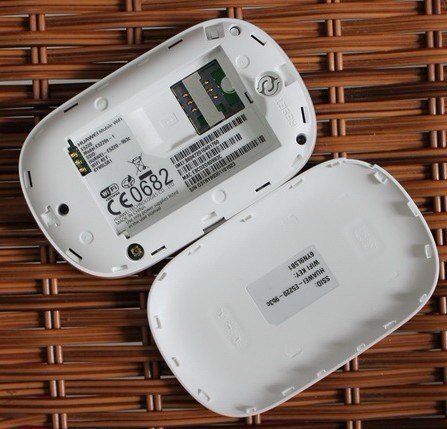
Four status LEDs on the front panel next to the Power button indicate the current operating status. Further information can be obtained only through the web UI of Huawei E5220, more on that. The connection to the computer via Wi-Fi in the 2.4 GHz band, up to 72 MBit/s is supported (Wi-Fi 802.11 b/g/n). Even if you are not too far from the router, the full 72 Mbit/s WLAN connection speed can’t come true at the terminal.
Only 3 hours battery life
The size of HUAWEI E5220 is very slim and in pocket size. The battery of Huawei E5220 removable and the capacity is only 1150 mAh, so in the test, the working time only lasts just under 3 hours at use in the train and at stationary use. On the other hand , the expensive 4G Mobile devices like the Huawei E5776 offer up to 10 hours. Positive note, the battery is easily replaceable and can therefore be replaced with a defect without effort.
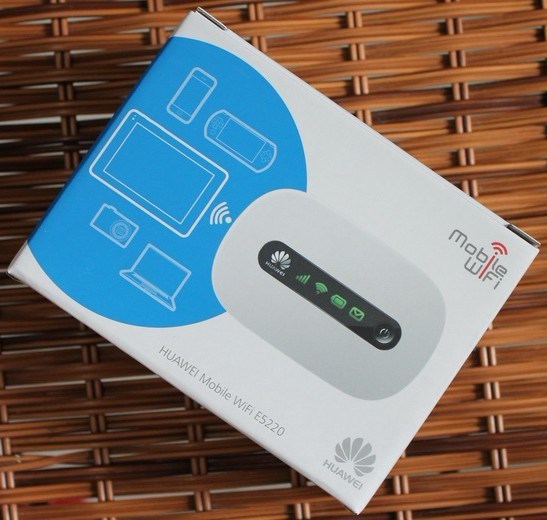
The operation of the Huawei E5220 hotspots is normally done via a web interface in the browser. There, next to the SIM pin, for example, network technology (automatic, 2G only, 3G only) or the provider could be selected. Information is also available about data volume and the online time. For smartphones and tablets with the Android operating system or iOS, an app is also available, which also presents the most common settings and information.
Conclusion: simple mobile WiFi hotspot
After the test, one thing is certain: Those who seeks extras like an external antenna port or a slot for memory cards, the Huawei E5220 is definitely wrong model because E5220 has not the external antenna connector and the SD card slot. But for those who want to surf high speed on UMTS, not LTE, Huawei E5220 is definitely worth a look: price, size and weight are unbeaten so far, as well as our Pocket WiFi column shows.
Here now, Huawei E5220 is already branded for the operator Vodafone, the model number is Vodafone R206. If you want the branded E5220, Vodafone R206 is a good option for you.
Wednesday, December 25, 2013
Huawei E586 3G Mobile WiFi Installation and Setup
Huawei E586 Installation
1) Remove the battery from the router and plug the SIM card into the router, and then plug the battery back in place.
2) Turn on the router and wait for few second, your SIM card operator will appear on the display.
3) Find the SSID of your HUAWEI E586 on the wireless network list, and press the Create Connection:
4) Enter the password for the wireless network, which is at the back of the rear cover to the router.
5) Your router is now connected, and displays connected status and data transfer speed on the display.
Resetting the E586 router
HUAWEI E586 router can be reset by removing the back cover, hold a sharp object and press until the router off, the reset button is at the left side of the Power button.
Deactivate the PIN
Want to beat the PIN from your router so that it can be connected without PIN, do as follows:
1) Go to your router's setup page http://192.168.1.1 and enter admin in the Password field.
2) Go to Settings> Advanced Settings> Managing PIN
Set PIN code function to Deactivate and enter the PIN.
3) Now press Apply.
Changing the WiFi channel
In areas with many wireless networks at the same time, and it maybe need to change the radio channel (frequency).
1) Go to your router's setup page http://192.168.1.1 and enter admin in the Password field.
2) Go to Settings -> WLAN -> Advanced WLAN settings, and set channel either to a high channel (11-13) or to a low channel (01-03).
3) Then press Apply.
Opening the gates
You have static IP and need to open the IP traffic on specific ports to your router from the outside, follow below the guide:
1) Go to your router's setup page http://192.168.1.1 and enter admin in the Password field.
2) Go to Settings> Security> Firewall contact, uncheck Enable Firewall and Disable WAN Ping
3) Go to Virtual Server and press the Add button. Enter the rule for the open port, and press OK.
4) Press Apply.
The specified port is now open and you can receive traffic on this port from the Internet.
Huawei E5170 Home Net Box for T-Mobile Austria
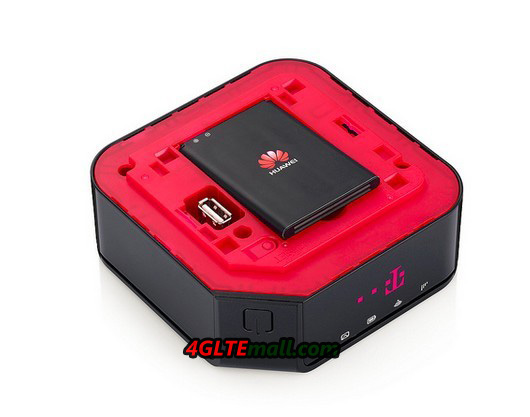
Since September 2013, the Austrian provider T-Mobile offered a powerful new LTE router Home Net Box. The device is a combination of stationary and mobile router, and is manufactured by Chinese manufacturer Huawei. The factory model number is Huawei E5170s-22, which was already shown in February 2013 at Mobile World Congress in Barcelona. With peak speed of up to 150 MBit/s for downsteam (LTE Category 4), T-Mobile Home Net Box is one of the fastest home wireless routers available on the market.
 Built-in rechargeable battery and docking station
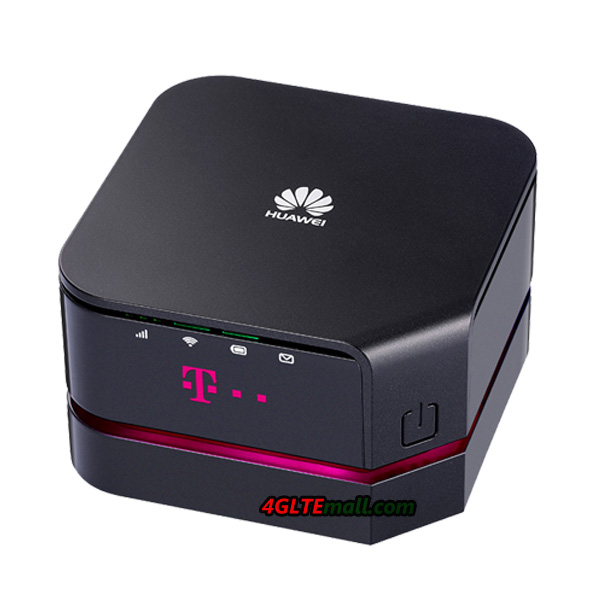
T-Mobile Home Net Box Huawei E5170s-22 basically consists of two parts: the actual router with integrated modem and the wireless module for up to 32 wireless devices, as well as a docking station that supplies the router with power and also has an Ethernet LAN interface.
Built-in rechargeable battery and docking station
T-Mobile Home Net Box Huawei E5170s-22 basically consists of two parts: the actual router with integrated modem and the wireless module for up to 32 wireless devices, as well as a docking station that supplies the router with power and also has an Ethernet LAN interface.
 A special feature is the built-in battery in the T-Mobile Home Net box. This enables wireless operation without docking station for up to 2.5 hours, just as you would expect the E5170 working as a 4G router. The operation is normally via a web interface, so the browser of any terminal is possible. The configuration via the Huawei Mobile WiFi app is also possible.
 Fast modem with LTE
As we can see, there is a "s-22" in the model number, Huawei 's subsidiary HiSilicon chipset is integrated inside the Huawei E5170s-22 modem. This supports cellular standards GSM, UMTS and LTE. In the fourth generation, wireless network connection of up to 150 Mbit/s for the downlink and up to 50 Mbit/s for the uplink are possible because of the LTE Category 4 can be used . Over UMTS, the maximum downlink speed of 42.2 Mbit/s are achievable, provided the network with DC-HSPA+ is equipped.
Fast modem with LTE
As we can see, there is a "s-22" in the model number, Huawei 's subsidiary HiSilicon chipset is integrated inside the Huawei E5170s-22 modem. This supports cellular standards GSM, UMTS and LTE. In the fourth generation, wireless network connection of up to 150 Mbit/s for the downlink and up to 50 Mbit/s for the uplink are possible because of the LTE Category 4 can be used . Over UMTS, the maximum downlink speed of 42.2 Mbit/s are achievable, provided the network with DC-HSPA+ is equipped.
 If the reception is poor, two external antenna connectors are ready for LTE or UMTS external antennas to be connected. The connection would be much helpful for computers, tablets and other devices via Wi-Fi 802.11 b/g/n and the surfing speed could reach up to 300 Mbit/s, unfortunately, neither the 5 GHz band, nor the fast Gigabit 802.11ac Wi-Fi is supported.
We believe the HUAWEI E5170 is not introduced by only T-mobile Austria; the 4G LTE Cat4 Router E5170 would be in many operators’ product range.
If the reception is poor, two external antenna connectors are ready for LTE or UMTS external antennas to be connected. The connection would be much helpful for computers, tablets and other devices via Wi-Fi 802.11 b/g/n and the surfing speed could reach up to 300 Mbit/s, unfortunately, neither the 5 GHz band, nor the fast Gigabit 802.11ac Wi-Fi is supported.
We believe the HUAWEI E5170 is not introduced by only T-mobile Austria; the 4G LTE Cat4 Router E5170 would be in many operators’ product range.
 Built-in rechargeable battery and docking station
T-Mobile Home Net Box Huawei E5170s-22 basically consists of two parts: the actual router with integrated modem and the wireless module for up to 32 wireless devices, as well as a docking station that supplies the router with power and also has an Ethernet LAN interface.
Built-in rechargeable battery and docking station
T-Mobile Home Net Box Huawei E5170s-22 basically consists of two parts: the actual router with integrated modem and the wireless module for up to 32 wireless devices, as well as a docking station that supplies the router with power and also has an Ethernet LAN interface.
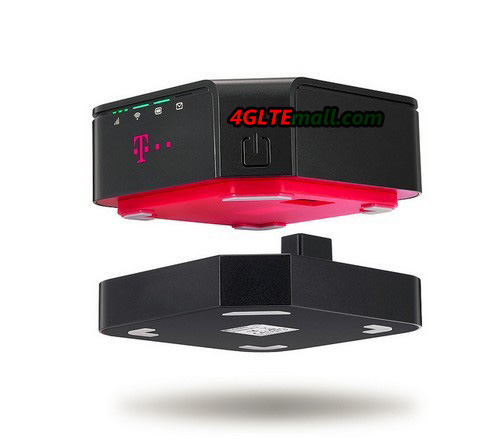 A special feature is the built-in battery in the T-Mobile Home Net box. This enables wireless operation without docking station for up to 2.5 hours, just as you would expect the E5170 working as a 4G router. The operation is normally via a web interface, so the browser of any terminal is possible. The configuration via the Huawei Mobile WiFi app is also possible.
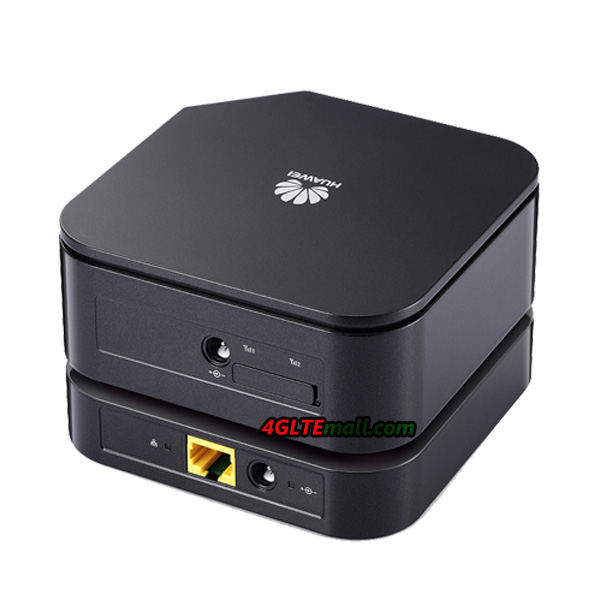 Fast modem with LTE
As we can see, there is a "s-22" in the model number, Huawei 's subsidiary HiSilicon chipset is integrated inside the Huawei E5170s-22 modem. This supports cellular standards GSM, UMTS and LTE. In the fourth generation, wireless network connection of up to 150 Mbit/s for the downlink and up to 50 Mbit/s for the uplink are possible because of the LTE Category 4 can be used . Over UMTS, the maximum downlink speed of 42.2 Mbit/s are achievable, provided the network with DC-HSPA+ is equipped.
Fast modem with LTE
As we can see, there is a "s-22" in the model number, Huawei 's subsidiary HiSilicon chipset is integrated inside the Huawei E5170s-22 modem. This supports cellular standards GSM, UMTS and LTE. In the fourth generation, wireless network connection of up to 150 Mbit/s for the downlink and up to 50 Mbit/s for the uplink are possible because of the LTE Category 4 can be used . Over UMTS, the maximum downlink speed of 42.2 Mbit/s are achievable, provided the network with DC-HSPA+ is equipped.
 If the reception is poor, two external antenna connectors are ready for LTE or UMTS external antennas to be connected. The connection would be much helpful for computers, tablets and other devices via Wi-Fi 802.11 b/g/n and the surfing speed could reach up to 300 Mbit/s, unfortunately, neither the 5 GHz band, nor the fast Gigabit 802.11ac Wi-Fi is supported.
We believe the HUAWEI E5170 is not introduced by only T-mobile Austria; the 4G LTE Cat4 Router E5170 would be in many operators’ product range.
If the reception is poor, two external antenna connectors are ready for LTE or UMTS external antennas to be connected. The connection would be much helpful for computers, tablets and other devices via Wi-Fi 802.11 b/g/n and the surfing speed could reach up to 300 Mbit/s, unfortunately, neither the 5 GHz band, nor the fast Gigabit 802.11ac Wi-Fi is supported.
We believe the HUAWEI E5170 is not introduced by only T-mobile Austria; the 4G LTE Cat4 Router E5170 would be in many operators’ product range.
Wednesday, December 18, 2013
HUAWEI B683 3G Router Setup Guide for Network Connection
Huawei B683 Setup Introduction
This guide explains how to setup your HUAWEI B683 3G router with the ability to share the Internet connection among multiple computers. Once you have completed the instructions, the router can log onto the internet and you will be able to connect your computers wirelessly to the router.
Log in to the router's control panel. Open a web browser and open the following address: http://192.168.1.1
Select the following:
User Name: admin
Password: admin
Click on "Login".
Enter your PIN, click "Connection" in the control panel's left side
Enter the PIN code, which is printed on the plastic card where the SIM card was sitting. The "Save PIN Code" can advantageously be selected, otherwise you need to log in to your router's control panel and enter the PIN code every time if the router has been disconnected.
Not all models support this feature. In this case, you can disable the PIN code on the SIM card (see description further along in the manual). Click "Apply".
Set up the Internet connection and the internal wireless network
Click on the "Settings" at the top.
Click on the "Quick Setup" in the control panel's left side.
Click the "Next" button to start the setup wizard.
Verify the following:
Profile Name: B683
Dial-up Number: *99 #
User Name: <efterlades blank>
Password: <efterlades blank>
APN: Check to your SIM card provider and enter the APN here
IP Address: <Dynamic>
Click on the "Next" button.
(1) APN = Access Point Name Depending on which APN you choose, you have different visibility (IP address and ports available) compared to the rest of the Internet.
Other settings:
Authentication: CHAP+PAP
Connection Mode: Auto
Under Connection Mode can be selected "Manual". With this option, you must log into the router's control panel and connect the connection each time if the router has been disconnected.
Click on the "Next" button.
Select the following:
Name (SSID): The name of the B683 router's wireless local area networks (2)
SSID Broadcast: Enabled (3)
Click on the "Next" button.
(2) To be selected on all the computers that will be connected to the Huawei B683 wirelessly.
(3) The B683 is visible in a radius up to 100 meters.
Select the following:
Encryption Mode: WPA2-PSK
WPA Encryption: AES + TKIP
WPA Pre-Shared Key: code of your choice (4)
Click on the "Next" button.
Review your selections and exit the wizard by clicking "Finish".
The router now connects to the Internet and you can continue the installation on your computers with wired (LAN) or wireless (WLAN).
(4) Wireless key must be entered on each computer and then connect to the router wirelessly.
Changing the WiFi code of HUAWEI B683
To change the WiFi code on your HUAWEI B683, start by opening your internet browser, you can uses Internet Explorer to show how to do.
Step 1: Enter "http://192.168.1.1" in the address field
Step 2: Login and enter "admin" into the password
Step 3: Locate the "Settings"
Step 4: Find "WLAN" and "WLAN Basic Settings"
Step 5: In the "WPA Pre-Shared Key", enter your new personal code and press "Save Settings" at the bottom
Subscribe to:
Posts (Atom)